Settings Messaging Email Templates
BridalLive offers merge tags for all kinds of dynamic information. Paste a merge tag into any email template to personalize or specify special content. BridalLive Merge Fields are used to help you create email templates that will have all of the up-to-date information. You can only use merge fields when you are using an HTML email template. Text only templates will not have this option.
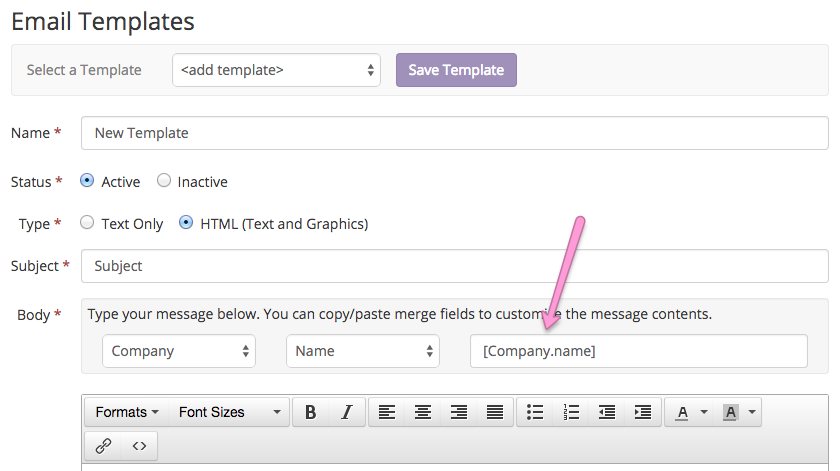
There are 7 different main categories for your BridalLive merge fields: Appointment, Associate, Company, Contact, Purchase Order, Transaction, and Vendor. With each of these categories, you will find more options under the next drop-down to the right.
Once you select your category and specific merge field, you will be given the merge field to the right. Each merge field will have brackets around it and have some text inside those brackets. The whole merge field will need to be copied and placed into the email template.
Key facts about merge fields:
- Merge keys are merged when email is sent. If sending an email at a later date, you will still see the merge keys.
- Do not change or edit the merge keys. They must be exactly how they are for BridalLive to transfer the correct data.
- If you would like a new merge key, then please send us a feature request (click the ? in the top right of BridalLive and select Request & Vote for Features)
- Many of the merge fields must be sent from their corresponding category
- If you add an Appointment category merge field, that email must be sent from the appointment screen
- If you use a merge field from the Purchase Order category, that email will need to be sent from the Purchase Order
- This is what allows BridalLive to populate the information. If you add an appointment merge field but send from the Contact Profile, BridalLive does not know which appointment you are referring to.
- Once you create an email, always send yourself a test to make sure everything is working properly.